Mobile App · Android & iOS

Prestige Hyperbaric Red Light

Wireless control for the Prestige Pro Modular 9-Wavelength Red Light Therapy Bed. Pair over Bluetooth, dial in each wavelength, run scene presets, and schedule sessions — right from your phone.

GET IT FOR Android Download on the App Store

Free for all Prestige Pro Modular bed owners. Requires iOS 16.0+ or Android 7.0+ with Bluetooth 4.2+.

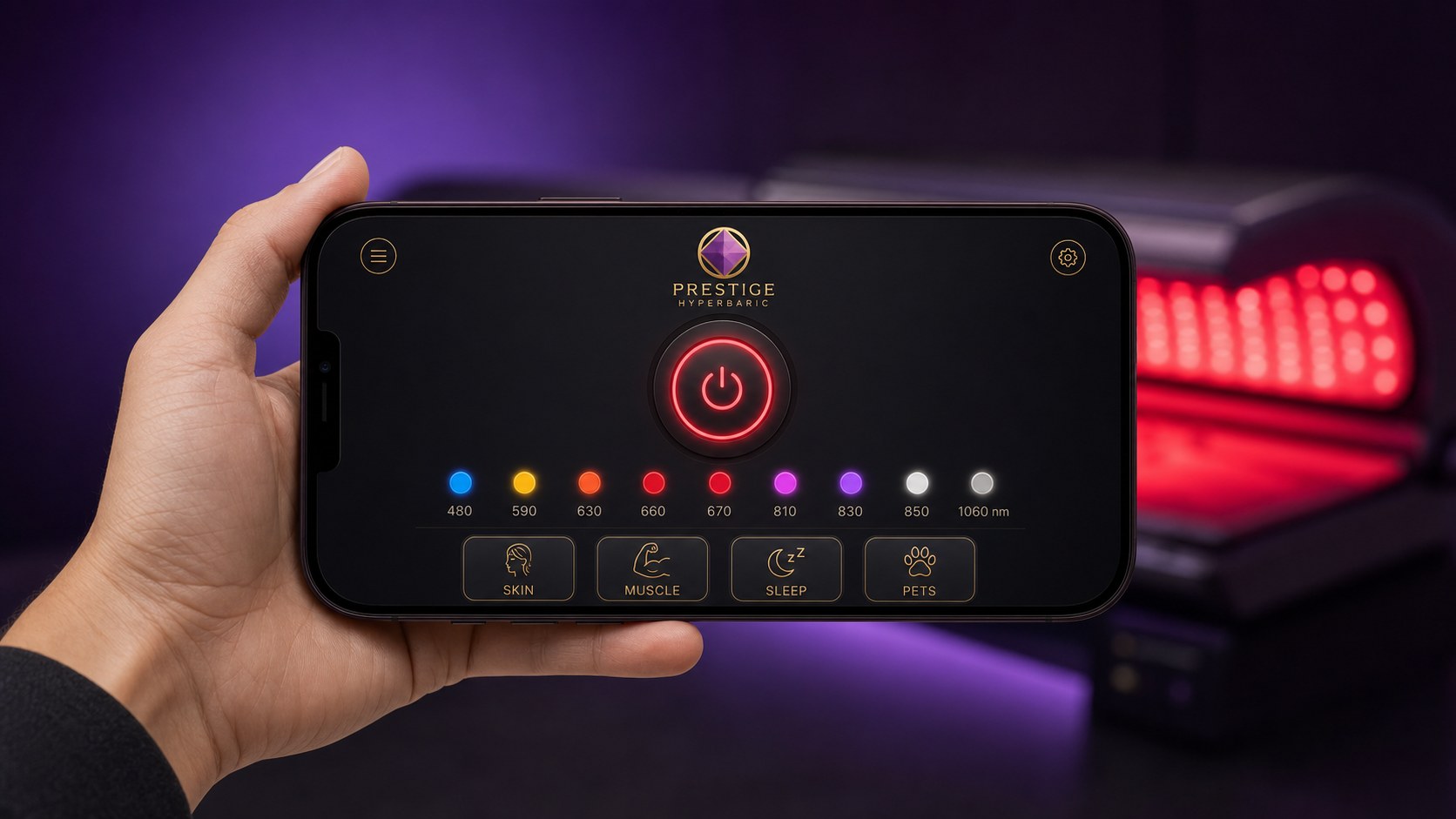
Prestige Hyperbaric Red Light app running on a smartphone next to the therapy bed

Everything Your Bed Does — From Your Hand

The Prestige Hyperbaric Red Light app talks directly to your bed over Bluetooth. No accounts, no cloud, no subscriptions — just instant wireless control.

🌈

9 Wavelengths, Independent Control

Adjust brightness and pulse rate for each of the 9 wavelengths separately: 480, 590, 630, 660, 670, 810, 830, 850, and 1060 nm.

🎬

Scene Presets

One-tap programs for Fat Loss, Skin, Muscle Recovery, Joint Pain, Sleep, Pets, and Universal. Tuned wavelength blends, ready to run.

⏱️

Timers & Session Scheduling

Set a session length, walk away, and the bed shuts off when you're done. Up to 10 saved alarms for recurring routines.

📡

Direct Bluetooth Pairing

Local-only Bluetooth control. No Wi-Fi, no logins, no cloud servers. Works even when your internet is down.

🔗

Group Control

Running multiple Prestige Pro Modular 9-Wavelength Red Light Therapy Beds in a clinic? Pair several at once and start them in sync from a single phone.

🔒

Private by Design

No accounts, no tracking, no data collection. The app only talks to your bed — nothing leaves your phone.

Prestige Hyperbaric Red Light app icon

Android

Install on Android

RECOMMENDED · COMING SOON

Google Play Store

The easiest way to install — auto-updates, no manual steps. Listing is in review with Google Play and will be linked here once approved.

Notify me when live →
AVAILABLE NOW · 1-CLICK INSTALL

Direct Android Install

One file, one tap. No extra apps, no Play Store, no companion installer. Tap the button on your Android phone — Android's built-in installer opens automatically and you're done.

Download v1.0 b40 (29 MB)

Compatible with Android 7.0 and newer · 64-bit ARM devices (virtually every Android phone made since 2017).

Install in 4 Steps

  1. Tap the download button above on your Android phone. The single APK file lands in your Downloads folder.
  2. Open the file. Tap the download notification, or open Files → Downloads → tap Prestige_Hyperbaric_Red_Light_v1.0_b40.apk. Android's built-in package installer opens directly — no other app needed.
  3. Allow install from this source (first time only). If Android asks, tap Settings, toggle on "Allow from this source" for your browser or Files app, then tap back. You'll only do this once.
  4. Tap Install. Done. The Prestige Hyperbaric Red Light icon will appear in your app drawer. Open it, enable Bluetooth, and the app will discover your bed.

Tried an earlier download that failed? Uninstall any partial install first (Settings → Apps → Prestige Hyperbaric Red Light → Uninstall), then download fresh from the button above. Your bed's saved presets are unaffected — they live on the bed itself, not in the app.

Need help installing? Call 727-591-4268 or email prestigehyperbaric@gmail.com — we'll walk you through it.

Android Install Walkthrough

App won't install? Adjust 3 Android settings

Samsung Galaxy phones (and most newer Androids) ship with three security features that block side-loaded apps by default. Turn each one off before installing — you can turn them back on after. The screenshots below show the exact menus on Samsung One UI; other Android phones use the same names with slightly different icons.

STEP 1 OF 3

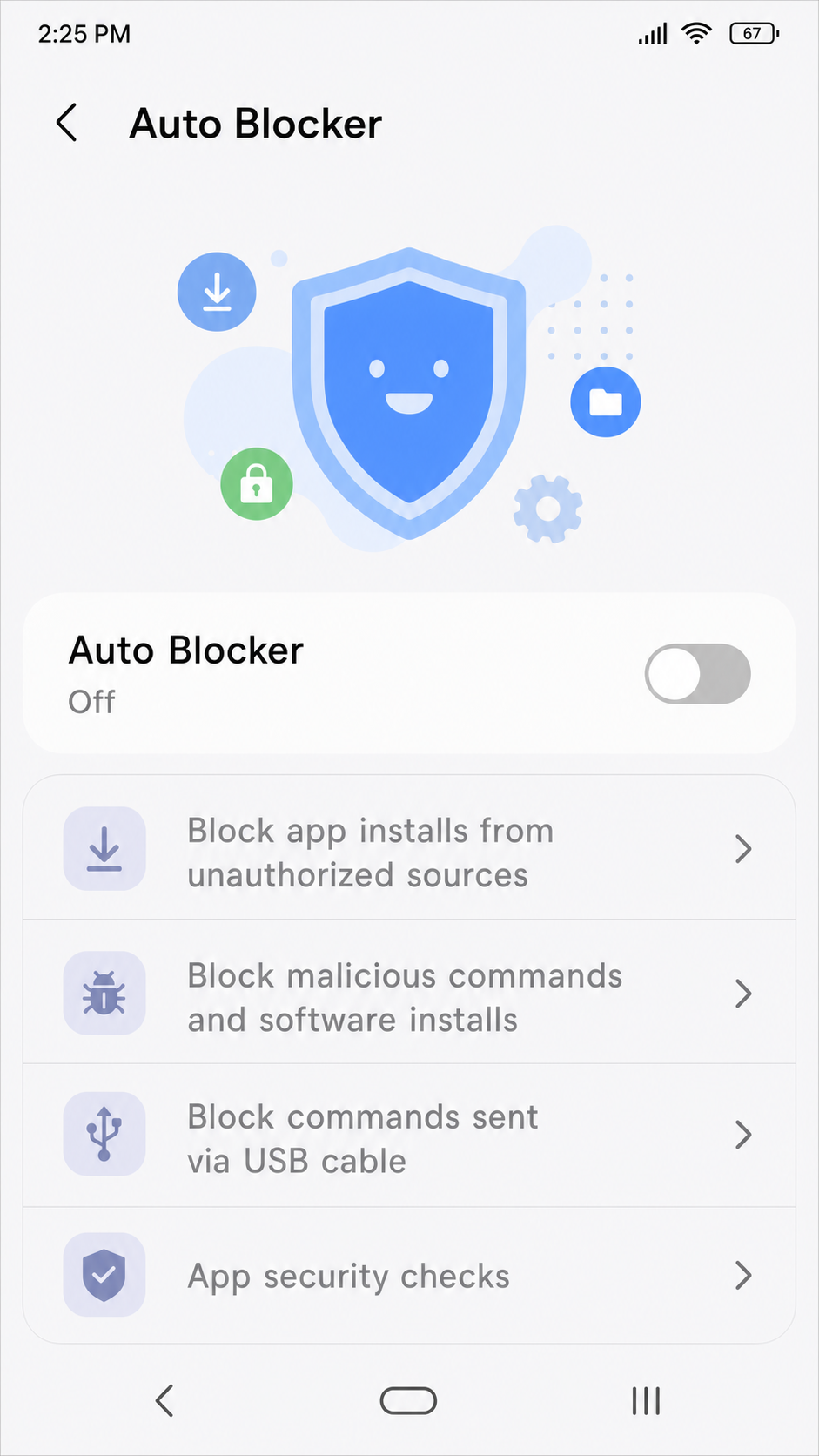
Turn off Auto Blocker

Samsung's Auto Blocker silently prevents apps from being installed outside the Galaxy Store. Turn it off before downloading the APK.

  1. Open Settings on your phone
  2. Tap Security and privacy
  3. Tap Auto Blocker
  4. Toggle the switch OFF (gray, slider on the left)

Don't see Auto Blocker? Your phone isn't a Samsung Galaxy, or it's an older One UI. Skip this step.

Samsung Auto Blocker settings screen showing the toggle in the OFF position
STEP 2 OF 3

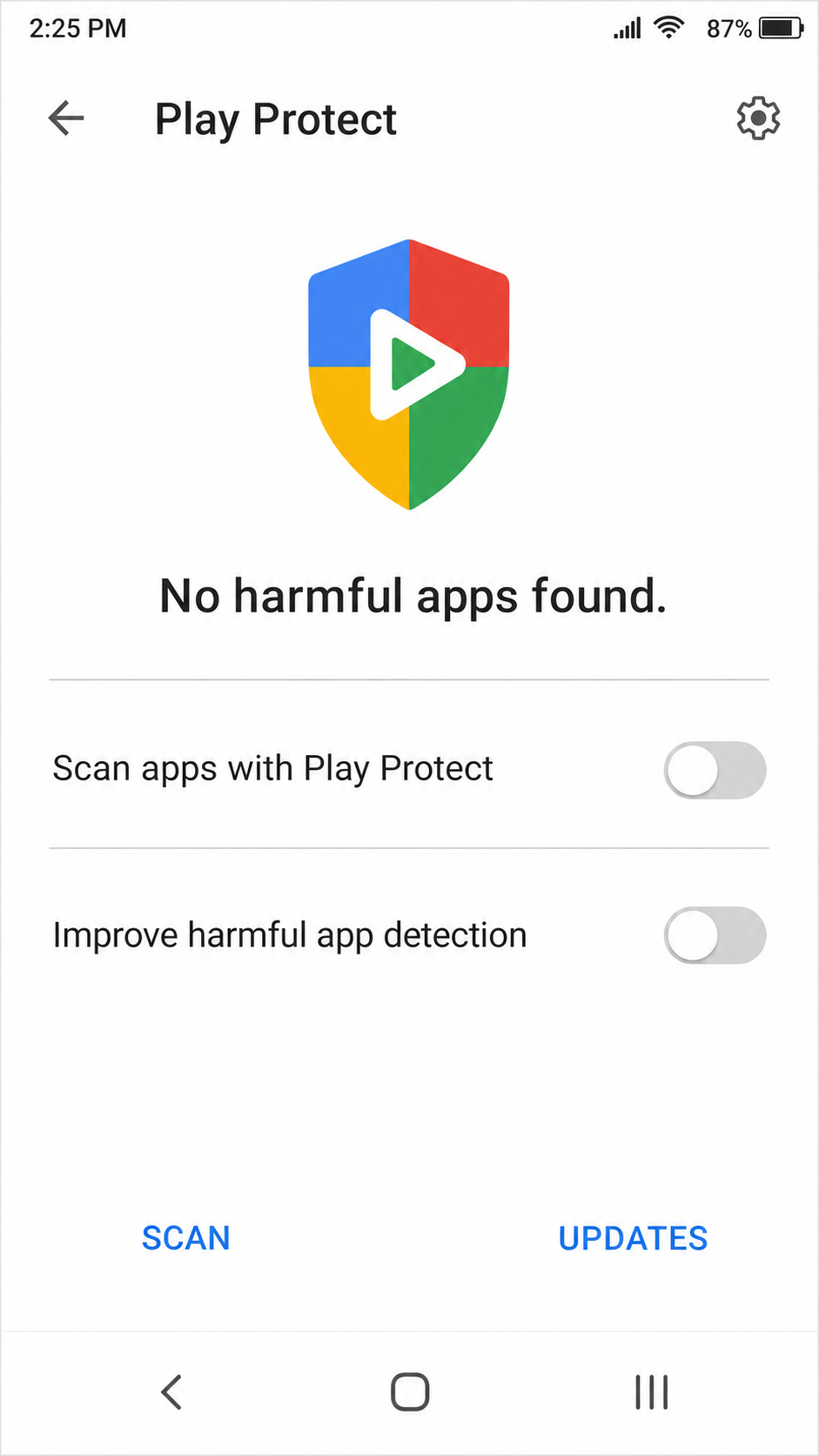
Turn off Google Play Protect

Google's Play Protect scans every install and blocks anything not from the Play Store. Disable it temporarily for the Prestige install — you can turn it back on right after.

  1. Open the Google Play Store app
  2. Tap your profile icon top right
  3. Tap Play Protect
  4. Tap the gear icon top right of the Play Protect screen
  5. Toggle Scan apps with Play Protect OFF
  6. If asked, also toggle Improve harmful app detection OFF

Safe to re-enable later? Yes — once the app is installed and trusted, you can turn Play Protect back on.

Google Play Protect settings screen showing Scan apps and Improve harmful app detection both toggled OFF
STEP 3 OF 3

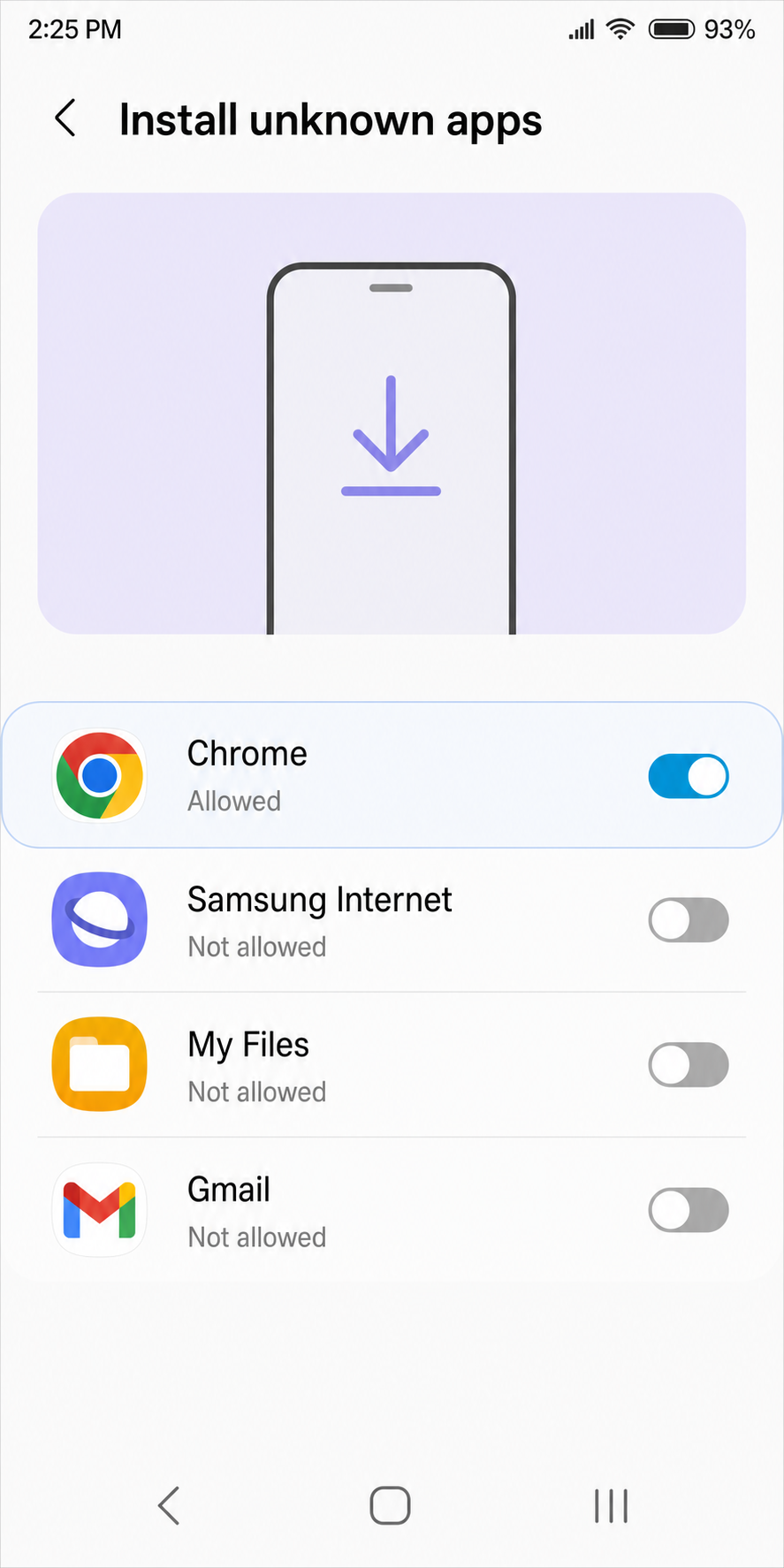
Allow install from Chrome

By default, Android only lets apps install through the Play Store. Give your browser permission to install the APK file — just once.

  1. Open Settings
  2. Tap Apps (or Apps & notifications)
  3. Tap the three-dot menu top right → Special access (some phones: tap the gear icon)
  4. Tap Install unknown apps
  5. Find Chrome in the list and tap it
  6. Toggle Allow from this source ON (blue, slider on the right)

Different browser? Substitute Samsung Internet, Firefox, or whichever browser you used to download the APK — the toggle just needs to be ON for that one.

Android Install unknown apps screen showing Chrome toggled ON

Already installed and just need bed-pairing help? Head to the Manual LCD Pairing walkthrough instead — that page covers setting Primary/Secondary bed roles and locking both beds to the same ID.

Prestige Hyperbaric Red Light app icon

iPhone & iPad

Install on iOS

AVAILABLE NOW · FREE

Apple App Store

The Prestige Hyperbaric Red Light iOS app is live on the Apple App Store. Tap the button below on your iPhone or iPad to install — free, with automatic updates.

Download on the App Store

Requires iOS / iPadOS 16.0 or later. 2.9 MB. Health & Fitness category.

Install in 3 Steps

  1. Tap the App Store button above on your iPhone or iPad. It opens the official Apple App Store listing.
  2. Tap Get (or the cloud icon if you've installed it before) and authenticate with Face ID, Touch ID, or your Apple ID password.
  3. Open the app, enable Bluetooth, and pair with your bed. The app will discover the bed automatically when it's powered on.

Need help? Call 727-591-4268 or email prestigehyperbaric@gmail.com.

iOS FAQ

What devices and iOS versions are supported?

iPhone and iPad running iOS / iPadOS 16.0 or newer. The app is lightweight (2.9 MB) and runs fine on every supported device, from the iPhone SE through the latest iPhone Pro Max and iPad models.

Is the iOS app free?

Yes — completely free, no in-app purchases, no subscriptions, no accounts. The app is included with your Prestige bed at no extra cost on both iOS and Android.

How do I get updates?

Automatically. As soon as we publish a new version on the App Store, iOS will install it for you (or notify you, depending on your Settings → App Store → App Updates preference). You don't have to do anything.

I was on the TestFlight beta — do I need to do anything?

No urgent action. The App Store build is now the primary version. Install it from the App Store at your convenience — it replaces the TestFlight build with no data loss (the app stores nothing personal; bed pairing info lives on the bed). Once you have the App Store version you can delete the TestFlight app.

I found a bug — how do I report it?

Email prestigehyperbaric@gmail.com with the subject "iOS App Bug Report" — include a short description, what you were doing when it happened, and a screenshot if possible. We respond fast.

Troubleshooting & FAQ

My bed isn't showing up in the app's pairing list.

Make sure (1) the bed is powered on, (2) Bluetooth is enabled on your phone, and (3) the phone has Location/Nearby Devices permission granted to the app. Android requires location permission to discover Bluetooth devices, even though no location data is collected. If you still don't see it, restart Bluetooth on your phone and force-stop the app, then reopen.

The Play Protect warning says my app is unverified.

This is normal for sideloaded apps that haven't been submitted to the Play Store yet. Tap "Install anyway" — the app is signed by Prestige Hyperbaric and is safe. Once our Play Store listing is approved, the warning will disappear.

Is this safe to install outside the Play Store?

Yes — the APK is signed with our Prestige Hyperbaric release key and served over HTTPS directly from prestigehyperbaric.com. Android shows a one-time "Allow from this source" prompt because we are not the Play Store yet; this is normal for any direct-install app. We are working on Play Store availability for the next release.

Will the app receive automatic updates?

Not while sideloaded. When we release a new version, we'll email all bed owners and post the new file on this page. Once we're on Play Store, updates will be automatic. Reinstalling a new version over the current one is supported — no data loss.

Does the app collect any of my data?

No personal data. The app is fully local — it talks to your bed over Bluetooth and nothing else. There are no accounts, no login, no analytics about you. See our Privacy Policy for the full disclosure.

My iPhone — how do I get the app?

The iOS app is live on the Apple App Store. Tap the App Store link on your iPhone or iPad and tap Get to install. Updates are automatic.

Don't have a Prestige Pro Modular 9-Wavelength Red Light Therapy Bed yet?

The app pairs only with the Prestige Pro Modular 9-Wavelength Red Light Therapy Bed. Take a look at the bed itself, or call us with questions.

See the Bed Contact Us