Manual Pairing · LCD Controllers
Pair your top and bottom Prestige beds together using the LCD touch controllers built into each unit. Once the two beds are linked, the app sees them as a single grouped device. This page is for users whose Auto Pair didn't connect — or who want to manually set bed roles before pairing with the app.
Looking for Android install help? If you can't get the app installed at all, see the Android Settings Walkthrough on the App Download page instead. This page is only for pairing the beds themselves.
A two-bed Prestige setup has one Primary bed (the bottom of the stack, the one closer to the floor) and one Secondary bed (the top of the stack). The Primary holds the master ID. The Secondary searches for the Primary's ID and locks onto it.
You'll do this directly on the LCD touchscreens built into each bed — the app is not involved in this step. Once the two beds are linked to the same ID, the app will see them as one device.
Walk to the bottom bed (the one resting on the floor or frame, NOT the one stacked on top). Use the LCD controller mounted on this bed.
ID 0427). Take note of this number — you'll see the same number appear on the top bed once they link.Already says Primary? No action needed — move to Step 2.
Photo coming soon
Bottom-bed LCD showing Group Device → Primary selected
Walk to the top bed (the one stacked above). Use the LCD controller mounted on this bed.
SS:SS search display. This means the top bed is now actively looking for the Primary.
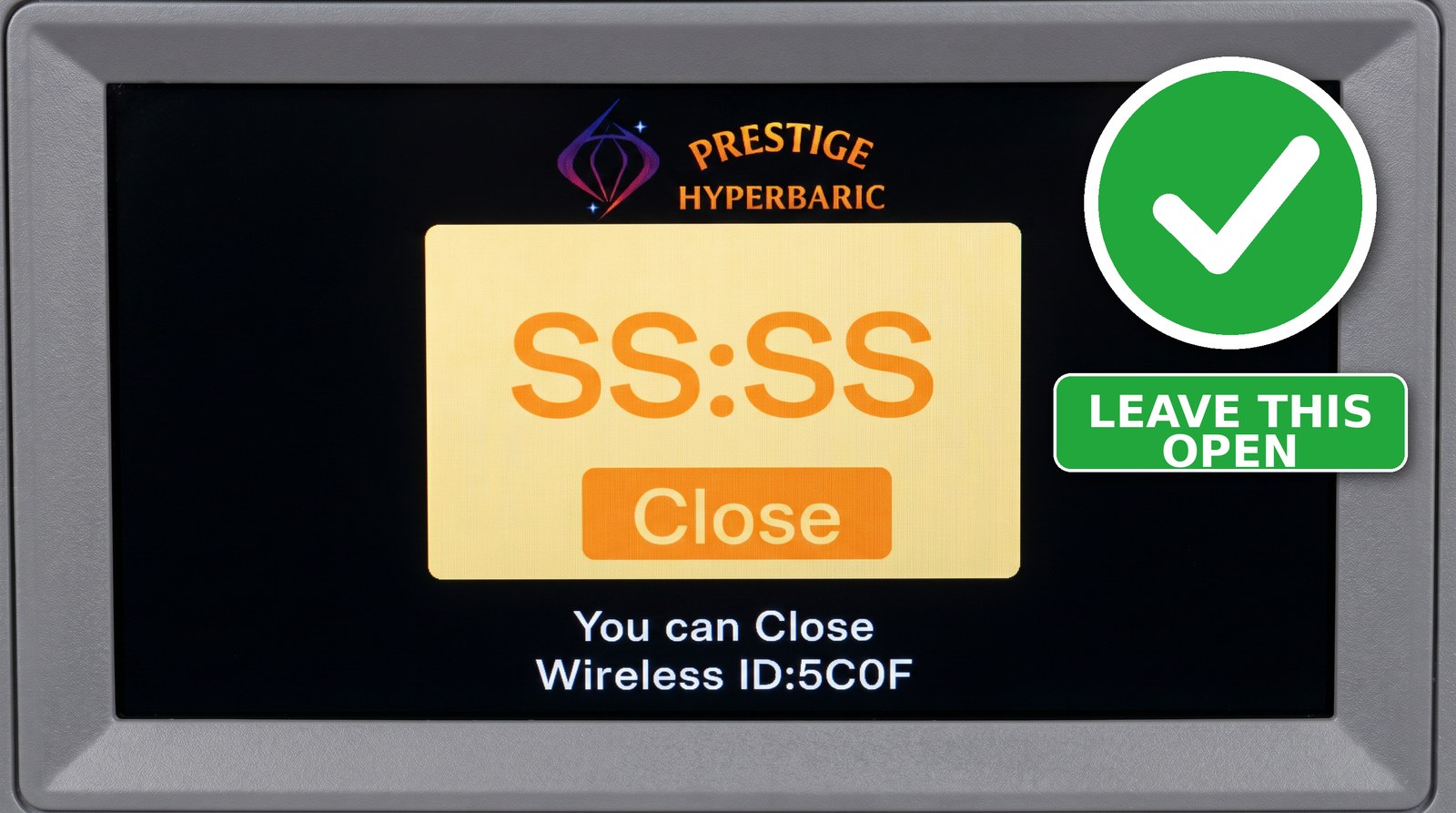
SS:SS search screen. The Wireless ID shown here (in this example, 5C0F) must match the ID the bottom bed is broadcasting. To see the bottom bed's ID, go to Settings → Group Device on the bottom LCD. When the IDs match and both beds beep in sync, the link is live. Leave this screen open until pairing completes.Leave the top bed's SS:SS screen showing — DO NOT touch it. Walk back to the bottom bed.
SS:SS stops flashing and now displays the matched ID.Photo coming soon
Bottom-bed LCD with the "Set Other Device to ID XXXX" button highlighted
The SS:SS screen on the top bed MUST stay open
If the SS:SS screen closes, the top bed stops searching and the link breaks. You'll have to start over from Step 2. If the LCD tends to sleep, tap the screen lightly every 20–30 seconds to keep it awake while you walk to the bottom bed.
With both beds linked and the bottom (Primary) LCD showing the shared ID, you're ready to connect from your phone.
Still stuck? Call 727-591-4268 or email prestigehyperbaric@gmail.com. We'll walk you through it.